
Native Barcode Generator for Microsoft Excel
A complete barcode generator that stays inside the spreadsheet, with no fonts or components to distribute.
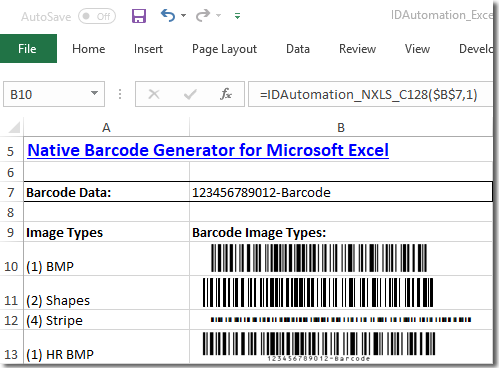
Native Barcode Generator for Excel (Featured Product)
The Native Barcode Generator for Microsoft Excel provides barcoding capability to Microsoft Excel spreadsheets with an embedded VBA macro making it easy to share sheets without needing to distribute additional fonts or other components.
Barcode Symbologies
Code 39, Code 128, PDF417, Data Matrix, QR Code, GS1-128, Interleaved 2 of 5, Codabar, Postnet, and USPS Intelligent Mail IMb.
Cross-Platform Compatible
Compatible for both Microsoft Windows and Mac OSX, 32 and 64 bit systems, for Microsoft Excel versions with VBA Macro support.
Easy to Distribute
This is a complete barcode generator that stays with the spreadsheet, even when distributed.
How the Native Generator Works
The generator is VBA code stored in the workbook. A worksheet formula such as =IDAutomation_NXLS_C128($B$7,1) returns the barcode, and the symbology and image type are chosen by the function parameters. Because the code is part of the file, nothing is installed on the computers of the people who open the workbook, as long as macros are allowed to run. Save the workbook as a macro-enabled workbook (.xlsm) and, in current versions of Microsoft 365, keep it in a trusted location.
- Create barcodes as pictures instead of font text, so a workbook looks the same on every computer.
- Use the same worksheet on Windows and Mac without changing fonts.
- Add 2D symbols such as QR Code, Data Matrix and PDF417 to a spreadsheet without a separate encoder.
- Print postal barcodes, including USPS Intelligent Mail IMb and Postnet, from address lists.
Buy Native Generator for ExcelRefer to the Excel Overview
Barcode Fonts Instead?
Self-checking fonts such as Code 39 work in Excel with a simple formula; refer to the Excel overview. For Code 128, UPC/EAN, QR Code and other symbologies that need check characters, use the Linear 1D Barcode Font Encoder for Excel or the 2D Barcode Font Encoder for Excel. Microsoft documents how macros are enabled and trusted in Enable or disable macros in Microsoft 365 files.